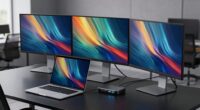
A docking station for four monitors can simplify a multi-screen desk, but your laptop’s operating system, video outputs, and dock technology determine whether all four displays will work as expected. I rank the TobenONE 20-in-1 DisplayLink Dock as the best overall for its four-display focus, while the StarTech.com Quad DisplayPort Dock suits buyers who prefer DisplayPort connections and the Dell Pro Thunderbolt 4 Smart Dock is the premium pick for compatible Thunderbolt setups. The main tradeoffs are DisplayLink software and resource use versus native Thunderbolt or USB-C support, along with resolution, refresh rate, power delivery, and port mix. A dock’s “four monitors” claim does not guarantee four independent screens on every laptop. Read on for the full comparison and a guide to matching a dock to your computer and displays.

Get privacy and security gear delivered free with Prime
- Fast, free delivery on millions of items
- Prime Video, Amazon Music and more included
- Member-only deals all year
Key Takeaways
- DisplayLink options lead this roundup for four-screen flexibility: several TobenONE and WAVLINK models are built around driving multiple displays, though they rely on software and compatibility checks.
- Connection type shapes the experience: the StarTech.com dock emphasizes four DisplayPort connections, while the Plugable and other HDMI models suit screens that use HDMI.
- Four ports do not mean the same thing across laptops: native USB-C and Thunderbolt docks depend on host display support, while DisplayLink models add a software-based path.
- The Dell Pro Thunderbolt 4 Smart Dock is the premium specialist: its appeal depends on having a compatible Thunderbolt laptop and a setup that benefits from that connection.
- Mixed ports can be more useful than a matching set: the WAVLINK USB-C dock with dual HDMI and dual DisplayPort may fit a desk with different monitor inputs better than an all-HDMI dock.
| WAVLINK Pro 15-Port Docking Station with Quad 4K HDMI for Mac and Windows |  | Best Overall for Port Variety | Display support: Up to 4 × 4K at 60Hz via HDMI | Total ports: 15 | Networking: 2.5G Ethernet | VIEW ON AMAZON | See Our Full Breakdown |
| TobenONE 20-in-1 DisplayLink Docking Station for Four 4K Monitors |  | Best for Flexible Monitor Connections | Total ports: 20 | Display outputs: 4 HDMI and 4 DisplayPort | Maximum display support: Four 4K displays at 60Hz | VIEW ON AMAZON | See Our Full Breakdown |
| StarTech.com USB-C Quad DisplayPort Workstation Dock, 4K 60Hz |  | Best for DisplayPort Workstations | Video outputs: 4 DisplayPort 1.4 | Maximum resolution: Up to 4K at 60Hz | Power delivery: Up to 140W passthrough | VIEW ON AMAZON | See Our Full Breakdown |
| Plugable 14-in-1 USB-C Docking Station with Four HDMI Ports |  | Best for Four 1080p Screens | Total ports: 14 | HDMI outputs: 4 | Display support: Up to four 1080p monitors at 60Hz | VIEW ON AMAZON | See Our Full Breakdown |
| TobenONE 18-in-1 DisplayLink Docking Station with 4 HDMI Ports |  | Best Value for HDMI Setups | Total ports: 18 | HDMI outputs: 4 | Maximum resolution: Up to 4K at 60Hz | VIEW ON AMAZON | See Our Full Breakdown |
| LIONWEI 13-in-1 USB-C Docking Station with Quadruple Display Support |  | Best for Mixed Display Connections | Total ports: 13 | Video outputs: 2× HDMI, DisplayPort, VGA | Maximum HDMI resolution: Up to 4K at 60Hz with a DP 1.4 source | VIEW ON AMAZON | See Our Full Breakdown |
| Treewaw 15-in-1 DisplayLink Docking Station for Four Monitors |  | Best for MacBook Multi-Monitor Setups | Total ports: 15 | HDMI outputs: 4 | USB data ports: 5 | VIEW ON AMAZON | See Our Full Breakdown |
| Dell Pro Thunderbolt 4 Smart Dock SD25TB4 |  | Best for Managed Business Desks | Model: SD25TB4 | Connectivity: Thunderbolt 4, USB-C, HDMI 2.1, DisplayPort 1.4, Wi-Fi, 2.5GbE | Display support: Up to 4 4K monitors | VIEW ON AMAZON | See Our Full Breakdown |
| WAVLINK USB-C Docking Station with Dual HDMI, Dual DisplayPort, 5G Ethernet, and 100W Power Delivery |  | Best for Windows High-Refresh Displays | Video outputs: 2 HDMI, 2 DisplayPort | Display support: Up to four 4K at 60Hz; select configurations support 4K at 144Hz | Maximum power input: 100W | VIEW ON AMAZON | See Our Full Breakdown |
| WAVLINK USB-C DisplayLink Quad-Monitor Docking Station |  | Best for High-Resolution Mixed-OS Workstations | Display support: Up to four monitors | Maximum resolution: 5120 × 1440 at 60Hz or 4096 × 2160 at 60Hz, depending on output configuration | Total ports: 19 | VIEW ON AMAZON | See Our Full Breakdown |
| TobenONE DL-7400 5-Monitor Docking Station with Cooling Fan |  | Best for Five-Screen Workstations | Display outputs: 5 HDMI ports; stated support for 8K plus four 4K displays at 120 Hz | USB ports: 7 total: 1 USB-A 2.0, 3 USB-A 10Gbps, 3 USB-C 10Gbps | Total ports: 18 | VIEW ON AMAZON | See Our Full Breakdown |
| TobenONE DisplayLink Docking Station for Up to Four Monitors |  | Best for High-Power Laptop Charging | Display support: Up to four extended 4K@60Hz displays on Windows; up to three on compatible MacBooks | Ports: 19 functional ports | Video connections: 4 HDMI and 2 USB-C video | VIEW ON AMAZON | See Our Full Breakdown |
| WAVLINK Laptop Docking Station with 4 HDMI Displays |  | Best for High-Refresh Main Displays | HDMI ports: 4 | Maximum displays: 4 | Display modes: Single display up to 4K@144Hz; up to 4K@144Hz plus three 4K@60Hz displays | VIEW ON AMAZON | See Our Full Breakdown |
| docking station for 4 monitor | Total ports | Laptop charging |
|---|---|---|
| WAVLINK Pro 15-Port Docking St | 15 | Up to 100W |
| TobenONE 20-in-1 DisplayLink D | 20 | Up to 100W |
| StarTech.com USB-C Quad Displa | 6 | — |
| Plugable 14-in-1 USB-C Docking | 14 | Up to 96W |
| TobenONE 18-in-1 DisplayLink D | 18 | Up to 100W; 96W certified |
| LIONWEI 13-in-1 USB-C Docking | 13 | Up to 87W from 100W Power Delivery input |
| Treewaw 15-in-1 DisplayLink Do | 15 | — |
| Dell Pro Thunderbolt 4 Smart D | — | — |
| WAVLINK USB-C Docking Station | — | Up to 90W |
| WAVLINK USB-C DisplayLink Quad | 19 | — |
| TobenONE DL-7400 5-Monitor Doc | 18 | — |
| TobenONE DisplayLink Docking S | — | Up to 100W |
| WAVLINK Laptop Docking Station | — | Up to 130W |
More Details on Our Top Picks
WAVLINK Pro 15-Port Docking Station with Quad 4K HDMI for Mac and Windows
The WAVLINK Pro pairs four 4K displays at 60Hz with a practical mix of 2.5G Ethernet, SD/TF readers, and up to 100W laptop charging. That balance makes it a flexible desk hub for someone connecting monitors, storage, and a network cable at once. Compared with the TobenONE 20-in-1, it has fewer listed ports, but its smaller footprint and 1.7-pound weight are easier to accommodate. The tradeoff is setup: its multi-display support requires DisplayLink software, and the listing conflicts on whether it has three or four HDMI ports. Buyers should confirm the output count before choosing it for a four-HDMI layout. Its aluminum housing and 160W adapter add useful thermal and power capacity, though the adapter itself will take desk space.
Pros:- Supports up to four 4K displays at 60Hz
- Includes 2.5G Ethernet and SD/TF card readers
- Provides up to 100W laptop charging and 30W device charging
- Aluminum housing helps dissipate heat
Cons:- DisplayLink software is required for multi-display use
- The listing conflicts on whether there are three or four HDMI outputs
Best for: Windows or Mac laptop owners who want four high-resolution displays, fast wired networking, and card readers in one desk dock.
Not ideal for: Buyers who need a confirmed four-HDMI connection layout or want multi-monitor operation without installing DisplayLink software.
- Display support:Up to 4 × 4K at 60Hz via HDMI
- Total ports:15
- Networking:2.5G Ethernet
- USB transfer speed:Up to 10Gbps
- Card readers:SD/TF, up to 312MB/s
- Laptop charging:Up to 100W
- Power adapter:160W
- Dimensions and weight:9.65 × 3.7 × 1.48 in; 1.7 lb
Our verdict“Choose the WAVLINK Pro if you want a well-rounded four-screen desk dock with fast networking and card readers, after confirming its HDMI port count.”
TobenONE 20-in-1 DisplayLink Docking Station for Four 4K Monitors
The TobenONE 20-in-1 gives monitor-heavy desks unusual flexibility: its four HDMI and four DisplayPort outputs let buyers match the dock to a mix of screens and cables while supporting up to four 4K displays at 60Hz. It also offers enough USB, card-reader, Ethernet, and audio connections to reduce the need for separate adapters. Compared with the WAVLINK Pro, the TobenONE has more listed ports and clearly specifies both HDMI and DisplayPort outputs, but it is larger and heavier at 2.3 pounds. It needs a DisplayLink driver, lacks HDCP support, and an M1 MacBook is limited to three extended displays. That makes it a stronger fit for flexible Windows or mixed-monitor setups than for protected video playback or a four-screen M1 Mac desk.
Pros:- Four HDMI and four DisplayPort outputs accommodate varied monitor connections
- Supports up to four 4K displays at 60Hz
- Broad set of USB, Ethernet, audio, and card-reader connections
- Provides up to 100W laptop charging
Cons:- DisplayLink driver installation is required
- HDCP is not supported
- M1 MacBooks support only three extended displays
Best for: Windows users or teams with mixed HDMI and DisplayPort monitors who want one dock for four 4K screens and many peripherals.
Not ideal for: M1 MacBook owners who need four extended screens, or buyers who rely on HDCP protected video content.
- Total ports:20
- Display outputs:4 HDMI and 4 DisplayPort
- Maximum display support:Four 4K displays at 60Hz
- Laptop charging:Up to 100W
- Phone charging:Up to 18W via USB-C
- Power adapter:150W
- Other connections:SD and microSD, Ethernet, 3.5mm audio
- Dimensions and weight:11.81 × 3.14 × 0.86 in; 2.3 lb
Our verdict“Pick the TobenONE 20-in-1 when monitor connection flexibility and a large port selection matter more than compact size or HDCP support.”
StarTech.com USB-C Quad DisplayPort Workstation Dock, 4K 60Hz
This StarTech.com dock is the focused choice for a workstation built around DisplayPort screens: it drives four DisplayPort 1.4 monitors at up to 4K 60Hz and offers up to 140W power delivery passthrough. That makes it more compelling for a DisplayPort-only desk than the WAVLINK Pro, whose listed video outputs are HDMI. The compact design also suits offices where the dock may need to travel. Its six-port count is the catch: the supplied data lists a USB-A 2.0 port, so it is less of a general peripheral hub than either TobenONE model. Windows and ChromeOS can install drivers automatically on most systems, while macOS requires manual setup. This is a specialist display dock, and buyers should check that its limited USB connections suit their desk.
Pros:- Supports four DisplayPort 1.4 monitors at up to 4K 60Hz
- Provides up to 140W power delivery passthrough
- Compact design suits office and travel use
- Three-year warranty
Cons:- Manual driver installation is required on macOS
- USB-A passthrough is limited to USB 2.0
- Six total ports make it less suited to desks with many peripherals
Best for: Professionals with four DisplayPort monitors who want high-resolution output, substantial charging passthrough, and a compact dock.
Not ideal for: People with HDMI-only monitors or desks that need numerous fast USB ports for storage and peripherals.
- Video outputs:4 DisplayPort 1.4
- Maximum resolution:Up to 4K at 60Hz
- Power delivery:Up to 140W passthrough
- Total ports:6
- Connector types:DisplayPort, USB Type-A, USB Type-C
- Driver setup:Automatic on most Windows and ChromeOS systems; manual on macOS
- Warranty:3 years
Our verdict“Choose this StarTech.com model for a compact four-screen DisplayPort workstation, provided its small port selection matches your setup.”
Plugable 14-in-1 USB-C Docking Station with Four HDMI Ports
The Plugable 14-in-1 is the more restrained choice for desks that need four displays but do not need 4K: it supports up to four 1080p monitors at 60Hz on compatible Windows and ChromeOS systems. Compared with the TobenONE 20-in-1, it has fewer ports and lower display resolution, but its 486-gram weight makes it easier to place in a compact workspace. It also brings Ethernet, an SD reader, audio, and up to 96W laptop charging. The display path needs careful checking: HDMI ports 3 and 4 require USB-C DisplayPort Alt Mode, and macOS extends to only three displays, with the fourth mirroring. DisplayLink drivers are also required for some configurations, so this is not a plug-and-play answer for every laptop.
Pros:- Supports up to four 1080p displays at 60Hz on compatible systems
- Includes Ethernet, SD card reader, and audio connections
- Provides up to 96W laptop charging
- Lightweight at 486 grams
Cons:- HDMI ports 3 and 4 require USB-C DisplayPort Alt Mode
- macOS supports only three extended displays; the fourth mirrors
- Some display configurations require DisplayLink drivers
Best for: Windows or ChromeOS laptop users who need four 1080p screens for office apps, plus common networking and card-reader ports.
Not ideal for: Buyers who require four 4K screens or Mac users who need four independent extended displays.
- Total ports:14
- HDMI outputs:4
- Display support:Up to four 1080p monitors at 60Hz
- USB ports:4 USB 3.0 and 1 USB-C
- USB data speed:Up to 5Gbps
- Laptop charging:Up to 96W
- Additional connections:Ethernet, SD card reader, audio in/out
- Weight:486g
Our verdict“Choose the Plugable if four 1080p Windows or ChromeOS screens are enough and a light, multiport dock suits your desk.”
TobenONE 18-in-1 DisplayLink Docking Station with 4 HDMI Ports
The TobenONE 18-in-1 brings four HDMI outputs, broad peripheral connectivity, and up to 4K at 60Hz to a single dock. It makes sense for a buyer who wants a capable HDMI-focused setup without needing the TobenONE 20-in-1’s extra DisplayPort outputs. Compared with that model, this one is more specifically organized around HDMI, with 18 ports and up to 100W laptop charging; it also supplies up to 18W phone charging from the front USB-C port. The tradeoff is platform flexibility: Windows supports up to four external displays, while Mac supports three, with restrictions on HDMI 3 and 4. It requires a DisplayLink driver, and Linux and Unix are unsupported. Buyers choosing it for a Mac desk should check the display limit before planning four extended screens.
Pros:- Four HDMI outputs with support for up to 4K at 60Hz
- 18 ports include USB, Ethernet, SD, microSD, and audio
- Provides up to 100W laptop charging
- Front USB-C port supports up to 18W phone charging
Cons:- DisplayLink driver installation is required
- Mac support is limited to three external displays, with restrictions on HDMI 3 and 4
- Linux and Unix are not supported
Best for: Windows laptop owners building a four-screen HDMI desk who also want card readers, Ethernet, and phone charging.
Not ideal for: Linux or Unix users, and Mac owners who require four external extended displays.
- Total ports:18
- HDMI outputs:4
- Maximum resolution:Up to 4K at 60Hz
- External displays:Up to 4 on Windows; up to 3 on Mac
- Laptop charging:Up to 100W; 96W certified
- Phone charging:Up to 18W via front USB-C
- Power adapter:120W
- Other ports:USB-A, USB-C, SD, microSD, Ethernet, audio
Our verdict“Choose the TobenONE 18-in-1 for a Windows HDMI desk that needs four screens and a broad set of peripherals, but skip it for Linux or four-display Mac use.”
LIONWEI 13-in-1 USB-C Docking Station with Quadruple Display Support
The LIONWEI 13-in-1 suits desks where monitors use different inputs: its HDMI, DisplayPort, and VGA outputs can connect a mix of newer and older screens. That flexibility makes it a better fit for a varied monitor collection than the WAVLINK USB-C Docking Station with Dual HDMI, Dual DisplayPort, 5G Ethernet, and 100W Power Delivery, which focuses on four digital outputs and Windows hosts. LIONWEI also adds 10Gbps USB data, SD and TF readers, Gigabit Ethernet, and up to 87W of laptop charging, so it can cover everyday peripherals without a separate hub.
The headline monitor count needs care: display support depends on the computer and operating system, and macOS extends to only one external monitor. The host USB-C port must support video output, too. Choose it for port variety and mixed connections, not as a reliable four-independent-monitor solution across every laptop.
Pros:- HDMI, DisplayPort, and VGA accommodate a range of monitor inputs
- 10Gbps USB 3.1 data transfer supports fast peripherals
- SD and TF card readers and Gigabit Ethernet are built in
- Provides up to 87W of laptop charging and a two-year warranty
Cons:- macOS supports only one extended external monitor
- Full video use depends on USB-C video output from the host
- The listed outputs do not guarantee four independent displays on every system
Best for: Laptop owners connecting a mix of HDMI, DisplayPort, or VGA monitors who also want card readers and wired networking.
Not ideal for: Mac users who need several extended external displays, or anyone whose laptop USB-C port does not support video output.
- Total ports:13
- Video outputs:2× HDMI, DisplayPort, VGA
- Maximum HDMI resolution:Up to 4K at 60Hz with a DP 1.4 source
- USB 3.1 transfer:Up to 10Gbps
- Laptop charging:Up to 87W from 100W Power Delivery input
- Ethernet:Gigabit (1000Mbps)
- Compatibility:Windows, macOS, and Thunderbolt 3 devices with USB-C video output
- Warranty:2 years
Our verdict“Pick LIONWEI for mixed monitor connections and useful built-in ports, provided your laptop supports the display setup you need.”
Treewaw 15-in-1 DisplayLink Docking Station for Four Monitors
For MacBook owners who want more than one extended external display, the Treewaw 15-in-1 takes a different route from direct USB-C video docks: DisplayLink software enables its four HDMI outputs in supported setups. That makes it a stronger candidate for multi-monitor macOS desks than the LIONWEI 13-in-1, which supports only one extended display on macOS. The four HDMI ports also make matching screens straightforward, while five USB data ports, Ethernet, card slots, audio, and up to 100W Power Delivery give it the reach of a full desk hub.
The software requirement adds setup and permission steps, and some protected streaming content may not play on attached screens. Resolution is listed up to 4K at 60Hz only in supported configurations, so I would check the host and monitor arrangement before relying on all four displays at that level. It is a practical choice for productivity, with more setup overhead than a simple direct-video dock.
Pros:- Four HDMI outputs support up to four external monitors in supported configurations
- Five USB data ports, Gigabit Ethernet, SD, microSD, and audio cover desk peripherals
- Up to 100W USB-C Power Delivery
- Compact footprint at 7.09 × 3.71 × 1.14 inches
Cons:- DisplayLink drivers and macOS Screen Recording permission may be required
- Some HDCP-protected streaming content may not play on connected displays
- Four-monitor resolution depends on the supported host and configuration
Best for: MacBook Air or Pro users who need several extended monitors and are comfortable installing DisplayLink software and granting macOS permissions.
Not ideal for: Buyers who want a plug-and-play dock, regularly watch HDCP-protected streaming content on external displays, or need guaranteed 4K60 on all four monitors.
- Total ports:15
- HDMI outputs:4
- USB data ports:5
- Maximum display resolution:Up to 4K at 60Hz in supported configurations
- Power Delivery:Up to 100W
- Connectivity:USB-C, USB 3.0, HDMI, Gigabit Ethernet, SD, microSD, 3.5mm audio
- Dimensions:7.09 × 3.71 × 1.14 inches
- Weight:13.55 ounces
Our verdict“Choose Treewaw if a MacBook multi-monitor setup matters more than avoiding driver installation and display permissions.”
Dell Pro Thunderbolt 4 Smart Dock SD25TB4
The Dell Pro Thunderbolt 4 Smart Dock SD25TB4 is aimed at managed office setups where display capacity is only part of the job. It supports up to four 4K monitors, can daisy-chain up to six devices, and adds Wi-Fi-based remote management and business security features such as WPA3, PXE boot, and DMA protection. Compared with the WAVLINK USB-C Docking Station with Dual HDMI, Dual DisplayPort, 5G Ethernet, and 100W Power Delivery, Dell puts more emphasis on fleet administration and device security than 5G Ethernet or higher-refresh display options.
Charging is strongest with Dell systems, reaching 130W there and 96W for other devices. That makes it a natural match for Dell laptops, while non-Dell users should check their power needs and host compatibility. Its recycled materials are a useful design detail, but the business management features matter most to buyers whose organization can use them.
Pros:- Supports up to four 4K displays
- Daisy-chains up to six devices
- Wi-Fi remote management and business security features
- Uses 65% recycled plastic and 100% recycled packaging
Cons:- Charging is limited to 96W on non-Dell devices
- Remote management and security features may add little value for a standalone home desk
- Display support still depends on the host system and monitor configuration
Best for: IT-managed offices using Dell laptops that need four-monitor support, remote dock management, and business security features.
Not ideal for: Individual users seeking a simple low-overhead dock, or owners of non-Dell laptops who need more than 96W charging.
- Model:SD25TB4
- Connectivity:Thunderbolt 4, USB-C, HDMI 2.1, DisplayPort 1.4, Wi-Fi, 2.5GbE
- Display support:Up to 4 4K monitors
- Charging:Up to 130W for Dell devices; 96W for other devices
- Daisy chaining:Up to 6 devices
- Security:WPA3 encryption, PXE boot, MAC filtering, DMA protection
- Recycled materials:65% recycled plastic; 100% recycled packaging
Our verdict“Choose the Dell for a managed business desk, especially when the laptops are Dell systems and remote administration is useful.”
WAVLINK USB-C Docking Station with Dual HDMI, Dual DisplayPort, 5G Ethernet, and 100W Power Delivery
Among these picks, this WAVLINK USB-C dock is the clearest match for a Windows workstation built around four digital displays. Its two HDMI and two DisplayPort outputs can support up to four 4K displays at 60Hz, with select configurations reaching 4K at 144Hz. The Dell Pro Thunderbolt 4 Smart Dock SD25TB4 is the more office-management-focused option; WAVLINK instead offers 5Gbps Ethernet and the higher-refresh configurations that matter to users with compatible screens and graphics hardware.
That performance depends on a capable host: the laptop needs USB 3.2, video output, and compatible DisplayPort and DSC support. It is Windows only, and the power adapter is not included, so the dock is a poor fit for Mac users or anyone expecting a complete out-of-box power setup. For a supported Windows desktop replacement, though, its four dedicated video outputs make the display plan easy to understand.
Pros:- Two HDMI and two DisplayPort outputs support up to four displays
- Select supported configurations offer 4K at 144Hz
- Up to 90W laptop charging
- 5Gbps Ethernet and a two-year warranty
Cons:- Not compatible with macOS
- Full display performance relies on host USB 3.2, video, GPU, and DSC support
- 100W power adapter is not included
Best for: Windows laptop users with compatible USB 3.2 and DSC support who want four digital monitors, fast Ethernet, or select 4K high-refresh setups.
Not ideal for: Mac users, laptops without compatible video output and DSC support, or buyers who need a power adapter included.
- Video outputs:2 HDMI, 2 DisplayPort
- Display support:Up to four 4K at 60Hz; select configurations support 4K at 144Hz
- Maximum power input:100W
- Laptop charging:Up to 90W
- Ethernet:Up to 5000Mbps
- Operating system:Windows only
- Host requirements:USB 3.2, video output, and compatible DisplayPort and DSC support
- Warranty:2 years
Our verdict“Pick this WAVLINK for a compatible Windows laptop and four-monitor setup where high refresh or 5Gbps Ethernet matters.”
WAVLINK USB-C DisplayLink Quad-Monitor Docking Station
The WAVLINK USB-C DisplayLink Quad-Monitor Docking Station pairs four-monitor support with a broad stated operating-system range, making it the most flexible fit here for buyers whose desk hardware spans Windows, macOS, ChromeOS, Android, or Ubuntu. Its output can reach 5120 × 1440 at 60Hz or Cinema 4K at 60Hz, depending on which outputs are used. Compared with the Treewaw 15-in-1 DisplayLink Docking Station for Four Monitors, WAVLINK lists 19 total ports, 2.5Gbps Ethernet, and an SD 4.0 reader, giving it a stronger peripheral and network package.
There are tradeoffs: the maximum resolution changes with output configuration, and compatibility is limited to devices that support the required USB-C or Thunderbolt connection. DisplayLink also means this is not the simplest direct-video choice. At 890g, it is better suited to a permanent workstation than a bag-bound travel dock.
Pros:- Supports up to four displays with high-resolution options
- 2.5Gbps Ethernet and an SD 4.0 card reader
- Up to 100W host charging
- Broad stated compatibility across Windows, macOS, ChromeOS, Android, and Ubuntu
Cons:- Maximum resolution depends on the output configuration
- Requires a compatible USB-C or Thunderbolt host connection
- At 890g, it is less convenient for frequent travel
Best for: Users with a supported USB-C or Thunderbolt computer who need four displays, faster-than-Gigabit Ethernet, and compatibility across several operating systems.
Not ideal for: Frequent travelers seeking a light dock, or buyers who need the same maximum resolution regardless of output combination.
- Display support:Up to four monitors
- Maximum resolution:5120 × 1440 at 60Hz or 4096 × 2160 at 60Hz, depending on output configuration
- Total ports:19
- HDMI ports:4
- Host charging:Up to 100W
- Ethernet:2.5Gbps
- Card reader:SD 4.0
- Compatibility:Select USB-C and Thunderbolt 3, 4, and 5 devices; Windows, macOS, ChromeOS, Android, and Ubuntu
Our verdict“Choose this WAVLINK for a permanent multi-OS workstation that needs four displays and a richer set of wired connections.”
TobenONE DL-7400 5-Monitor Docking Station with Cooling Fan
The DL-7400 is the strongest fit here for a Windows workstation that may need five displays, giving it room beyond this roundup’s four-monitor focus. Its five HDMI ports and claimed support for an 8K display plus four 4K displays at 120 Hz offer more headroom than the TobenONE DisplayLink Docking Station for Up to Four Monitors, which instead prioritizes up to 100W laptop charging. This model supplies up to 45W, so it may not keep power-hungry laptops charged under load. The 2.5Gbps Ethernet, seven USB ports, card reader, and active cooling fan suit a desk with several peripherals and sustained use. DisplayLink drivers are required, and HDCP is unsupported, which rules it out for some protected video workflows.
Pros:- Supports up to five displays, adding expansion beyond a four-monitor setup
- Five HDMI ports simplify connecting HDMI monitors
- 2.5Gbps Ethernet and seven USB ports accommodate network and peripheral needs
- Built-in fan helps manage heat during sustained use
Cons:- Up to 45W charging may be insufficient for some laptops
- Requires DisplayLink driver installation
- Does not support HDCP-protected content
Best for: Windows users building a multi-screen workstation with five HDMI displays, wired networking, and several USB peripherals.
Not ideal for: Laptop owners who need high-wattage charging from the dock or users who rely on HDCP-protected video.
- Display outputs:5 HDMI ports; stated support for 8K plus four 4K displays at 120 Hz
- USB ports:7 total: 1 USB-A 2.0, 3 USB-A 10Gbps, 3 USB-C 10Gbps
- Total ports:18
- Ethernet:2.5Gbps
- USB-C charging:Up to 45W
- Power supply:150W
- Card reader:SD/TF 4.0
- Cooling and driver:Built-in active cooling fan; DisplayLink driver required
Our verdict“Choose the DL-7400 if your workstation may grow to five screens; skip it if laptop charging power or HDCP support is a priority.”
TobenONE DisplayLink Docking Station for Up to Four Monitors
This TobenONE puts four extended 4K displays at 60Hz on Windows together with up to 100W laptop charging, making it a balanced choice for a desk where the dock needs to power the computer as well as connect screens. Compared with the five-display TobenONE DL-7400, it gives up an extra display and some refresh-rate headroom, but offers more than twice the stated laptop charging output. Its 19 ports include four HDMI connections, USB-C video, card readers, 2.5Gbps Ethernet, and audio, reducing the need for separate adapters. Mac users should check the display limits closely: it supports up to three displays on compatible MacBooks, and HDMI 3 and HDMI 4 cannot run simultaneously on macOS. DisplayLink installation is also part of setup.
Pros:- Supports up to four extended 4K displays at 60Hz on Windows
- Up to 100W laptop charging can reduce reliance on a separate charger
- 19 ports include 2.5Gbps Ethernet, card readers, and audio
- Includes a 24-month warranty and lifetime technical support
Cons:- Requires DisplayLink driver installation
- Compatible MacBooks support up to three displays, with HDMI 3 and 4 unable to operate together on macOS
- At 2.3 lb, it is less convenient to carry than a compact travel dock
Best for: Windows laptop users who need four 4K screens, one-cable connectivity, and up to 100W charging at a shared workstation.
Not ideal for: MacBook users who require four simultaneous external displays, or anyone seeking a driver-free setup.
- Display support:Up to four extended 4K@60Hz displays on Windows; up to three on compatible MacBooks
- Ports:19 functional ports
- Video connections:4 HDMI and 2 USB-C video
- Other connections:USB-A, USB-C PD, SD and microSD readers, 2.5Gbps Ethernet, and audio
- Laptop charging:Up to 100W
- Power adapter:120W
- Compatibility:Thunderbolt 3/4/5, USB4, and full-featured USB-C
- Warranty and driver:24-month warranty with lifetime technical support; DisplayLink driver required
Our verdict“Pick this model for a Windows four-screen desk that benefits from 100W charging and broad connectivity, but check Mac display limits before buying.”
WAVLINK Laptop Docking Station with 4 HDMI Displays
The WAVLINK stands apart for a mixed-resolution setup: it claims support for one 4K display at 144Hz plus three 4K displays at 60Hz. That can suit a workstation where one screen handles fast motion and the other three hold documents or reference material. By comparison, the TobenONE DisplayLink Docking Station for Up to Four Monitors specifies four 4K displays at 60Hz on Windows and offers a broader set of listed ports and operating systems. WAVLINK’s appeal is the high-refresh output and up to 130W laptop charging, but 144Hz depends on a compatible host connection and a specific HDMI port. It also needs a driver, and its narrower OS support excludes Linux, iPadOS, iOS, and Steam Deck.
Pros:- Supports a stated configuration of one 4K@144Hz display plus three 4K@60Hz displays
- Up to 130W laptop charging from a 140W PD 3.1 input
- Four HDMI outputs support a direct connection to four HDMI monitors
- Two-year warranty
Cons:- 144Hz output depends on a compatible host port and a specific HDMI port
- Requires driver installation and is not plug and play
- Does not support Linux, iPadOS, iOS, or Steam Deck
Best for: Windows or newer macOS laptop users who want one high-refresh 4K screen alongside three standard 4K monitors and strong charging output.
Not ideal for: Linux users, Steam Deck owners, and buyers who need broad device compatibility or a plug-and-play dock.
- HDMI ports:4
- Maximum displays:4
- Display modes:Single display up to 4K@144Hz; up to 4K@144Hz plus three 4K@60Hz displays
- Power input:140W PD 3.1
- Laptop charging:Up to 130W
- Host requirements:USB-C with USB 3.2 Gen 2; DP Alt Mode or Thunderbolt 3/4/5 required for 4K@144Hz
- Chip:SMI770
- Operating systems and driver:Windows 10/11 and macOS 13 or later; driver required
Our verdict“Choose WAVLINK for a four-screen setup with one high-refresh 4K display and strong laptop charging, provided your host and operating system are supported.”

How We Picked
I judged each dock by how clearly its design supports a four-monitor workspace: display technology, stated screen support, port types, host connection, and how much setup depends on software. I also weighed practical desk needs, including power delivery, network connectivity, peripheral ports, and whether the port layout fits common HDMI or DisplayPort screens. A high port count alone did not earn a higher place; buyers need a dependable path from their specific laptop to four independent displays.
The ranking favors products whose feature set directly addresses four displays and makes the host requirements understandable. I placed native Thunderbolt and USB-C options according to the laptop support they require, and treated DisplayLink as a useful route for broader multi-display support with an added software step. Models with specialized layouts or narrower compatibility appeal lower in the order for buyers whose setups match them. Before choosing any dock here, confirm its display limits against your exact laptop model, operating system, and monitor resolution and refresh rate.
| docking station for 4 monitor | Laptop charging |
|---|---|
| WAVLINK Pro 15-Port Docking St | Up to 100W |
| TobenONE 20-in-1 DisplayLink D | Up to 100W |
| StarTech.com USB-C Quad Displa | — |
| Plugable 14-in-1 USB-C Docking | Up to 96W |
| TobenONE 18-in-1 DisplayLink D | Up to 100W; 96W certified |
| LIONWEI 13-in-1 USB-C Docking | Up to 87W from 100W Power Delivery input |
| Treewaw 15-in-1 DisplayLink Do | — |
| Dell Pro Thunderbolt 4 Smart D | — |
| WAVLINK USB-C Docking Station | Up to 90W |
| WAVLINK USB-C DisplayLink Quad | — |
| TobenONE DL-7400 5-Monitor Doc | — |
| TobenONE DisplayLink Docking S | Up to 100W |
| WAVLINK Laptop Docking Station | Up to 130W |
Factors to Consider When Choosing Docking Station For 4 Monitors
Choosing a four-monitor dock starts with the laptop, not the number printed on the box. I would check how the computer sends video, what each monitor accepts, and whether the dock’s software approach suits the way I work. These checks can prevent buying a dock that connects physically but cannot drive four separate screens in your setup.
Check how your laptop handles multiple displays
Look up the maximum number of external displays supported by your exact laptop model and operating system. USB-C ports can look identical while offering different video capabilities, and some laptops mirror screens where buyers expect independent desktops. Apple silicon models, Windows laptops, and computers with discrete graphics can each have different limits. A DisplayLink dock may add another route to extra screens, but it usually requires a driver and may behave differently from native video output. Check the dock maker’s compatibility notes before relying on it for four extended displays. This matters especially if you switch between personal and managed work computers, where driver installation may be restricted.
Choose between DisplayLink and native video
DisplayLink sends display data through a software layer, which can help some systems run more monitors than their native video outputs allow. That can be useful for office work, dashboards, documents, and other mostly static content. It adds a driver dependency and can use system resources, so it may be a poor match for latency-sensitive work or computers where software installs are blocked. Native Thunderbolt or USB-C video avoids that particular driver path, but still depends on the laptop’s own display support. Do not assume either method is universally better: choose based on your apps, host computer, and tolerance for setup. Confirm whether the dock supports four independent extended screens on your operating system.
Match ports to monitor inputs and display demands
Count the inputs on the monitors you plan to connect, then compare them with the dock’s HDMI and DisplayPort outputs. Adapters can bridge some mismatches, but they add another point of failure and may limit resolution or refresh rate. Four 4K displays can place very different demands on a dock than four lower-resolution office screens. Check the supported resolution and refresh rate for all displays running at once, rather than relying on a single-screen maximum. Mixed HDMI and DisplayPort outputs can help when your monitors have different inputs. Leave room in the plan for a future monitor so one new screen does not force a full dock replacement.
Treat power delivery as a laptop-specific requirement
A dock’s power delivery rating tells you how much charging power it can provide, not whether it will charge every laptop at full speed. Compare that rating with your laptop’s supplied charger and the dock’s host connection. A performance laptop may still need its original adapter during demanding workloads, even when a dock can charge it for lighter tasks. Some docks also share available power among attached devices, so several bus-powered accessories can affect the setup. If you depend on a single-cable desk connection, check charging support alongside video support before buying. Power delivery cannot make an unsupported four-display configuration work.
Plan for bandwidth, networking, and everyday peripherals
Four active displays share a connection with storage, Ethernet, webcams, and other docked devices. The host interface and dock design affect how comfortably those tasks can run together, especially with high-resolution screens and fast external drives. Think through which ports you will use daily and whether the dock places them where cables can reach. A built-in Ethernet port can be valuable for a stable work connection, while extra USB ports matter if you keep several peripherals connected. Avoid choosing by port count alone: ports you cannot use at the same time as your display setup offer little benefit. If your workload moves large files while driving four screens, check the dock and laptop bandwidth specifications closely.
Decide what setup and support you can live with
Some four-display docks need drivers, firmware updates, or a particular order for connecting screens. That may be manageable at a permanent desk but inconvenient for a shared or frequently moved setup. Check whether installation needs administrator access, especially for a company-managed laptop. A compact dock can save desk space, while a larger model may offer a wider selection of connections or dedicated cooling. Think about cable placement and ventilation if the dock will sit behind a monitor or inside a cabinet. Paying more makes sense when a dock’s connection type, support, and port layout solve a real limitation in your setup.
Frequently Asked Questions
Will any USB-C laptop run four monitors from one dock?
No. USB-C describes the connector, not a guarantee of four-screen video support. The laptop’s graphics hardware, port capabilities, operating system, and dock technology all matter. Some DisplayLink docks can provide an additional software-based display path, but they need compatible drivers and may not suit every workload. Check the dock’s compatibility list against your exact computer before buying.
Can I use a DisplayLink dock if I cannot install software?
Usually, a DisplayLink dock needs its driver installed and permitted by the operating system. If you use a managed work computer, your organization may block installation or updates. Ask your IT administrator or check the computer’s software policy before choosing this type of dock. A native Thunderbolt or USB-C model may avoid the DisplayLink driver, but it still needs laptop support for the number of displays you want.
Do four HDMI or DisplayPort sockets guarantee four extended screens?
No. The sockets describe the dock’s outputs, while the laptop and dock technology determine whether those outputs can drive separate desktops. Depending on the host and configuration, displays may mirror, run at lower specifications, or fail to activate. Also check the maximum resolution and refresh rate when all four are connected. Confirm independent extended-display support for your operating system and laptop model.
Is a four-monitor dock suitable for gaming or high-refresh displays?
It depends on the dock’s display limits, the laptop’s graphics hardware, and how video is carried to the screens. Many office-focused multi-display docks prioritize connecting several work monitors over high refresh rates or gaming performance. DisplayLink can add a software step that may not suit fast-moving content or latency-sensitive use. Check the supported refresh rate for each monitor with all intended screens active, and connect gaming displays directly to the laptop when its ports offer a better fit.
What should I check before connecting four 4K monitors?
Confirm that the laptop, dock, and operating system support four independent 4K displays at the refresh rate you expect. Then check whether the dock can sustain those specifications across all outputs at once, rather than only on one port. The connection type, adapters, cable capabilities, and monitor inputs can each affect the result. Review the dock maker’s setup instructions and driver requirements before arranging your desk. If the specifications are unclear, ask the manufacturer to confirm your exact laptop and display combination.
Conclusion
For most buyers focused on a four-screen workstation, I would start with the TobenONE 20-in-1 DisplayLink Dock as the best overall choice, provided its driver requirements fit the laptop. The WAVLINK USB-C dock with dual HDMI and dual DisplayPort is my best value-style pick for a desk with mixed monitor inputs, while the Dell Pro Thunderbolt 4 Smart Dock is the best premium fit for a compatible Thunderbolt setup. Beginners should favor the option whose host support, monitor connections, and installation steps are easiest to verify before purchase; the Plugable four-HDMI dock may suit an all-HDMI desk. For DisplayPort-first workstations, the StarTech.com Quad DisplayPort Dock has a more targeted port layout. Match any final choice to your exact laptop and four-screen specifications before ordering.